Source
Supabase live template
Delivery
Sent email
Last sent May 1, 2026
Updated
May 1, 2026
Visuals
4 image assets
Version 2. rewrote Day 6 for practical context management and added three branded visuals
Main Context
AI Orientation
Day 6: Better context, projects, notebooks, and vision
Day 6: Give AI better context, and it gets much more useful
What you'll see today:
- Why blank-chat AI keeps making you repeat yourself
- How Projects and workspaces reduce drift
- When NotebookLM is better than a normal chatbot
- Why image upload is one of the most underused beginner moves
- Your action: turn messy input into clean structured output
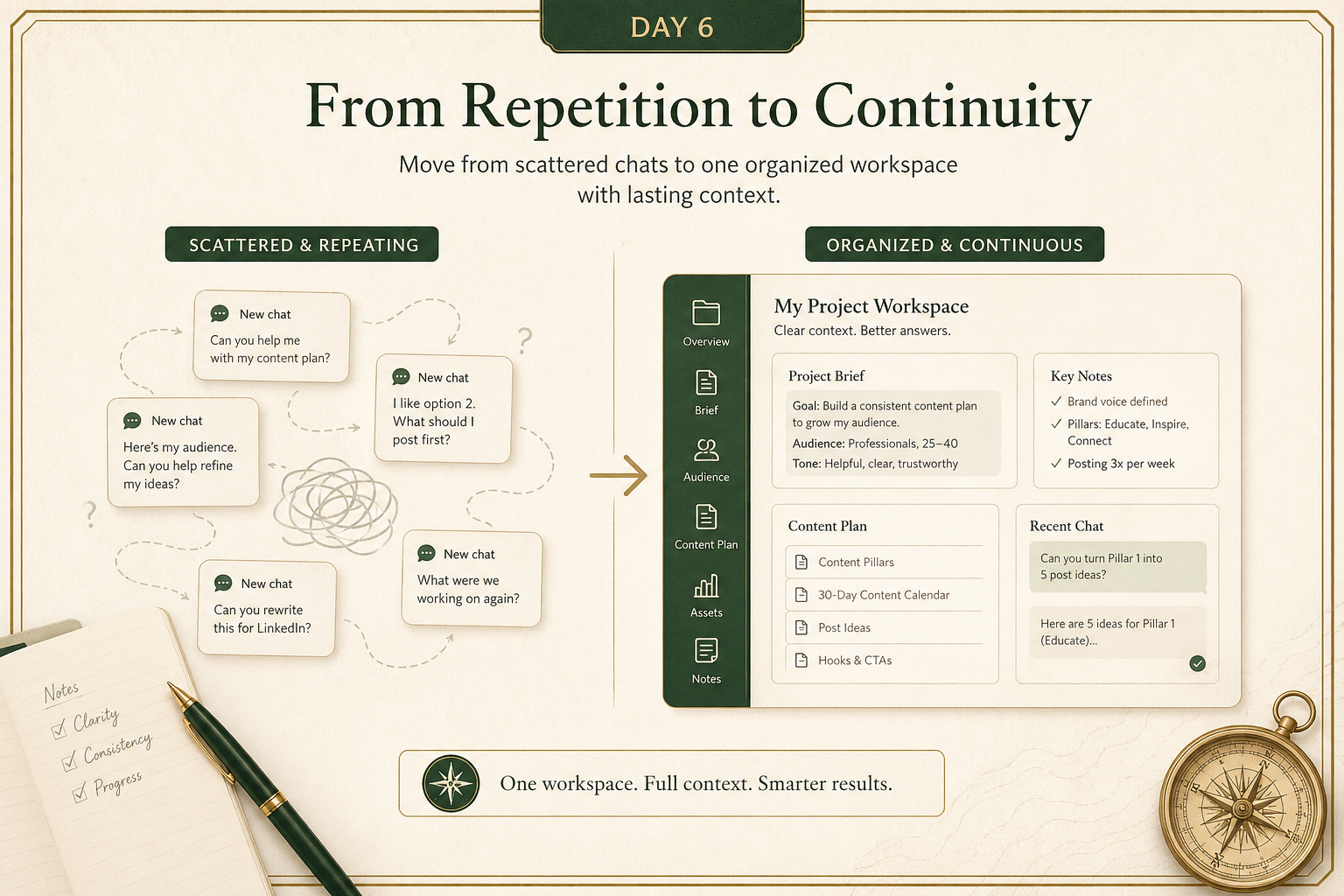
A lot of people use AI like this:
open a new chat, paste the same context again, repeat the same instructions again, and hope the model remembers what matters.
That works for quick one-off tasks.
It gets frustrating fast for anything bigger:
- an ongoing work project
- a research topic
- a pile of documents
- a repeated weekly workflow
- a conversation that depends on earlier decisions
The core issue is not always model quality.
A lot of the time, the issue is context management.
Today is about a simple upgrade:
stop treating every task like a fresh blank chat.
Start giving AI a better workspace.
1) Projects and workspaces: stop starting from zero every time
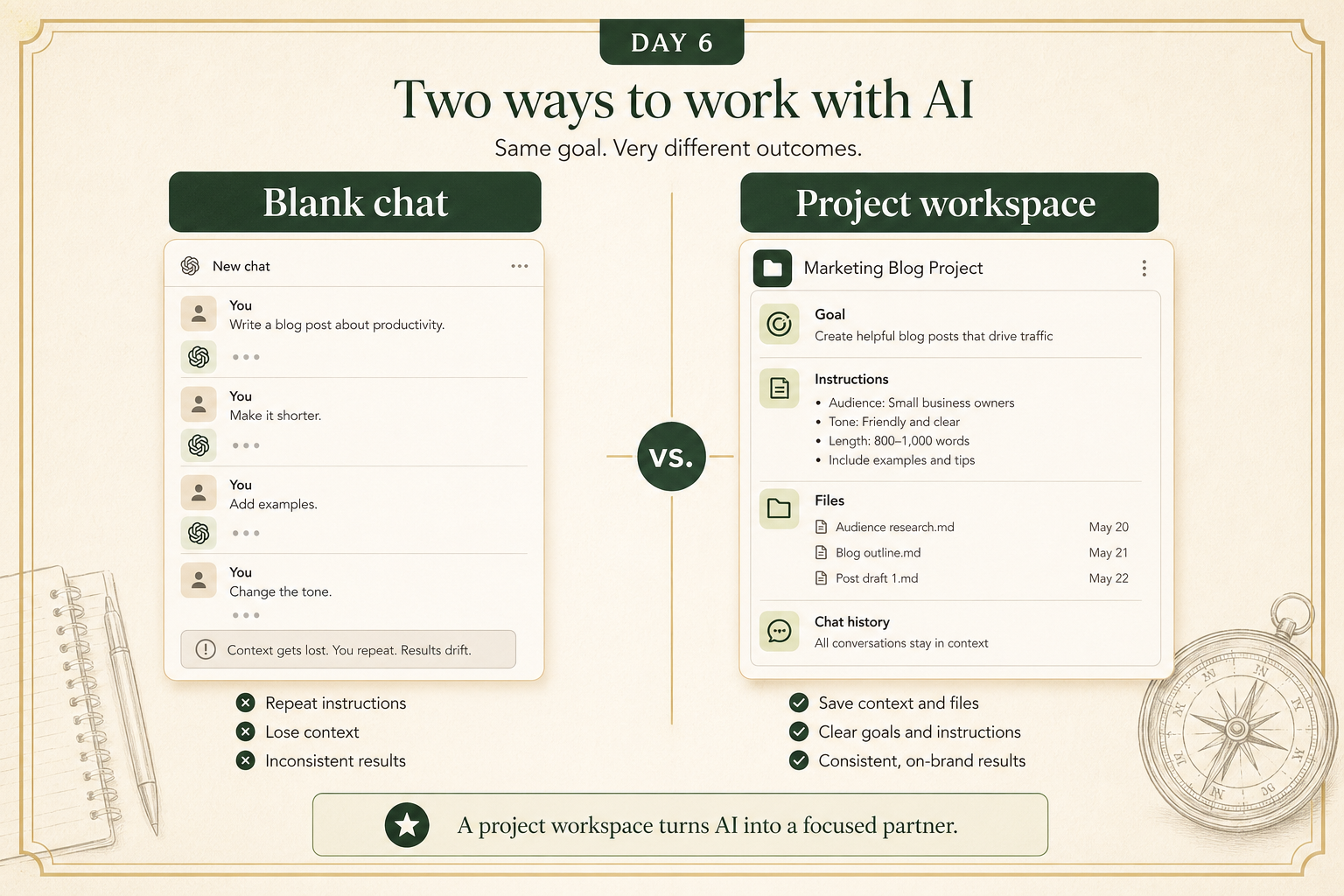
If you are doing ongoing work, the best move is usually not “write a better one-shot prompt.”
It is “create a better place for the work to live.”
Most major AI tools now offer some version of:
- Projects
- Workspaces
- Knowledge folders
- Persistent instructions
- Uploaded files tied to a specific task or thread of work
The point is simple:
instead of re-explaining the same project every time, you create one place where the AI can keep using the same core context.
This helps with three beginner problems:
- less repetition
- less drift
- better continuity across sessions
A practical example:
If you are job hunting, a project workspace might include your resume, target role description, a few past cover letters, and a note saying “keep this practical and concise.”
2) NotebookLM: use it when the job is “understand these sources”
Normal chatbots are often used for general conversation.
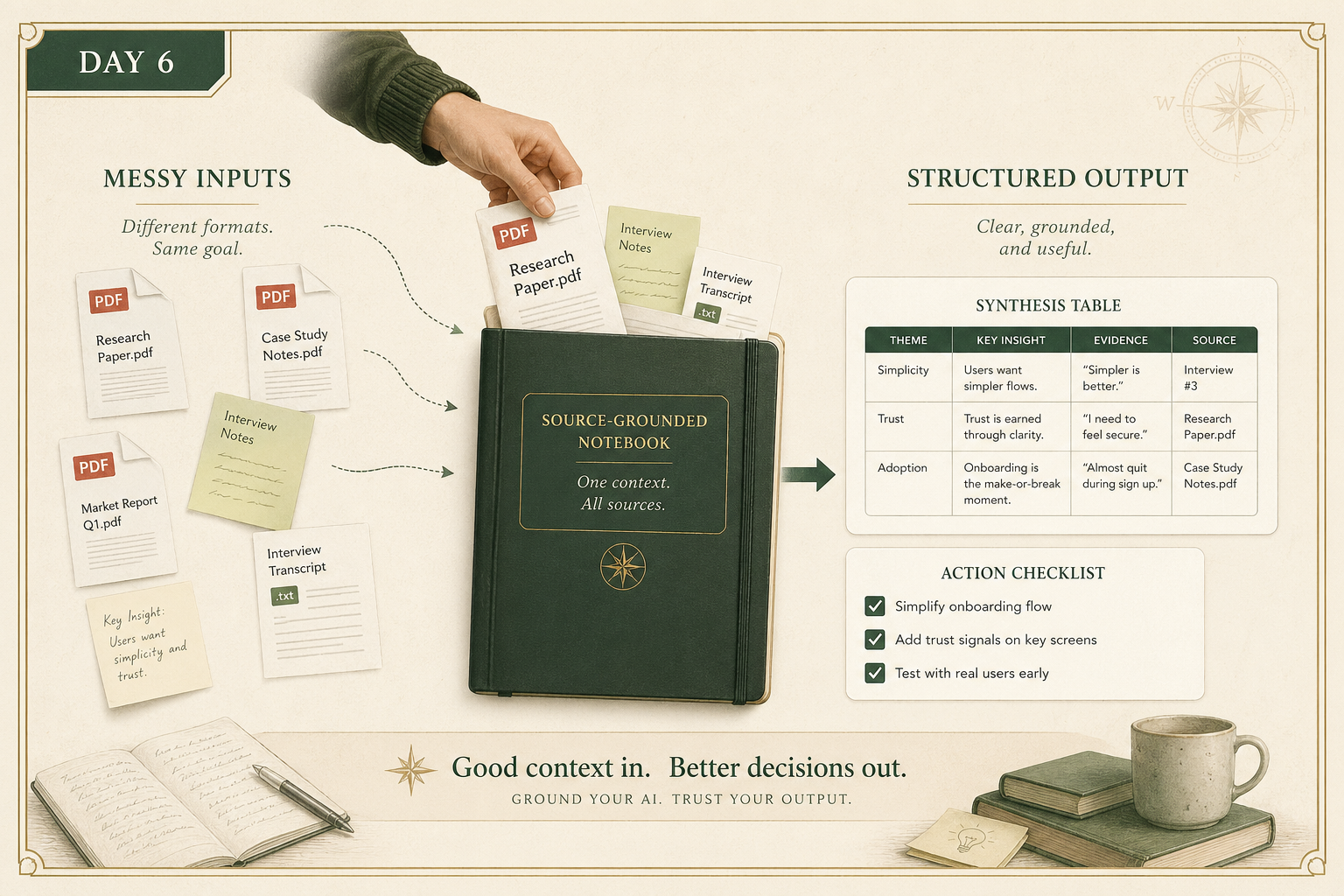
NotebookLM is especially useful when the job is:
“Here are the materials. Help me understand them.”
That makes it useful for:
- class readings
- meeting notes
- research reports
- policy documents
- interview prep packets
- long internal docs nobody wants to read line by line
A simple rule:
- use a regular chatbot when you want broad help
- use a source-grounded notebook when you want answers based on a specific pile of material
That distinction matters because a lot of beginner frustration comes from asking a general model to act like it has already read your documents carefully when it has not.
3) Vision and structured output: turn messy input into usable work
One of the most underused beginner moves is simply uploading an image.
Modern tools can often help with:
- screenshots
- whiteboards
- handwritten notes
- charts
- menus
- forms
- receipts
- interface errors
Useful beginner examples:
- upload a screenshot of an error message and ask what it means
- upload a photo of a messy whiteboard and ask for action items
- upload a chart and ask for the biggest takeaway
- upload a long form and ask what needs attention first
Then make one more upgrade:
ask for structure.
Instead of:
“Summarize this.”
Try:
“Extract the key dates, people, and action items into a table.”
Or:
“Turn this into a checklist.”
Or:
“Pull the vendor name, invoice date, and amount into CSV format.”
That tiny change often makes the output far more useful.
Your action for today
Use one real piece of messy input.
Choose one of these:
- a long email thread
- a PDF
- a screenshot
- a whiteboard photo
- a meeting note dump
- a page of notes
Then ask AI to turn it into a structured output.
You can use a prompt like:
“Read this material and turn it into a clean Markdown table with these columns: item, status, owner, deadline, and notes. If something is missing, leave it blank instead of guessing.”
Reply with:
- what type of input you used
- the exact prompt you used
- the structured output you got back
I’ll tell you:
- whether the output format was the right choice
- what the prompt did well
- the one change that would make it more reliable next time